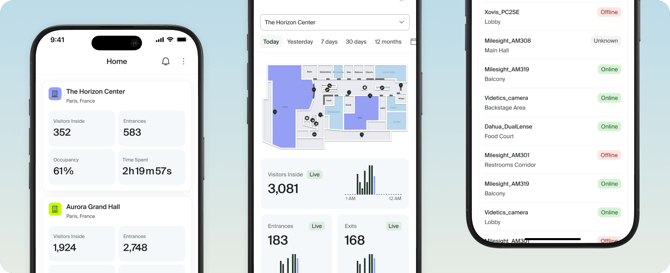
Technis app for iOS and Android lets you quickly monitor your site's data on the go. With the app you can:
- View live and historical data of all your sites.
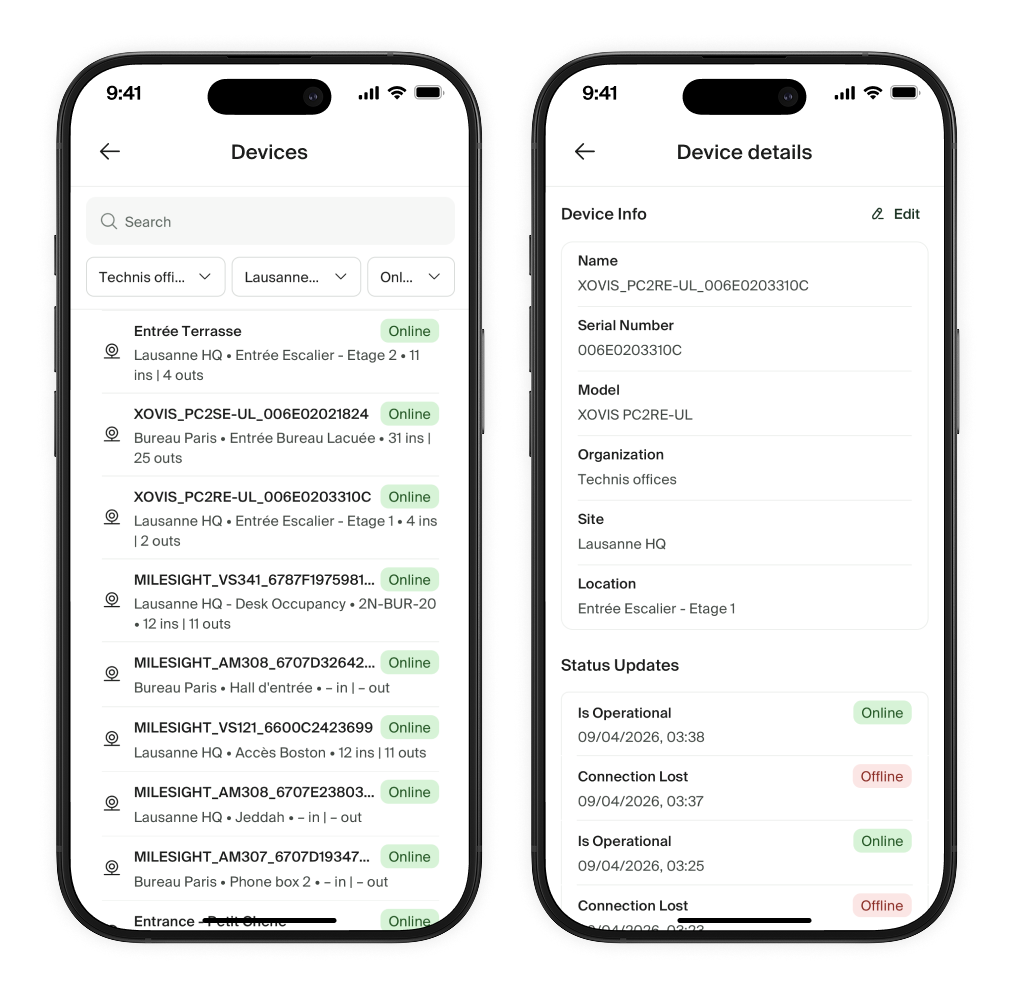
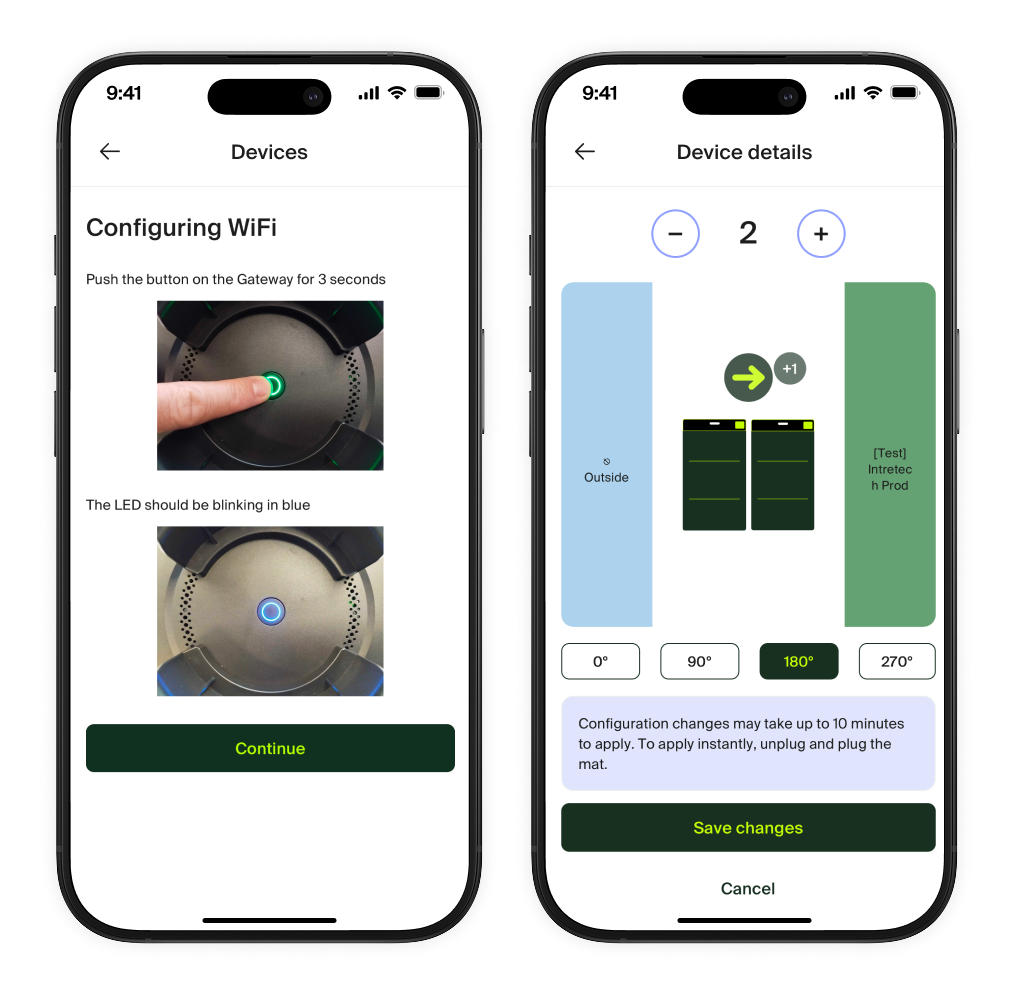
- Monitor device statuses, re-link devices to different zones and passages, or set up Intechfloor smart counting mats.
- Receive push notifications for your pre-configured alerts, such as threshold limits or connectivity issues with your sensors .
Download the app


Or scan this code with your phone:

Getting around the app
|
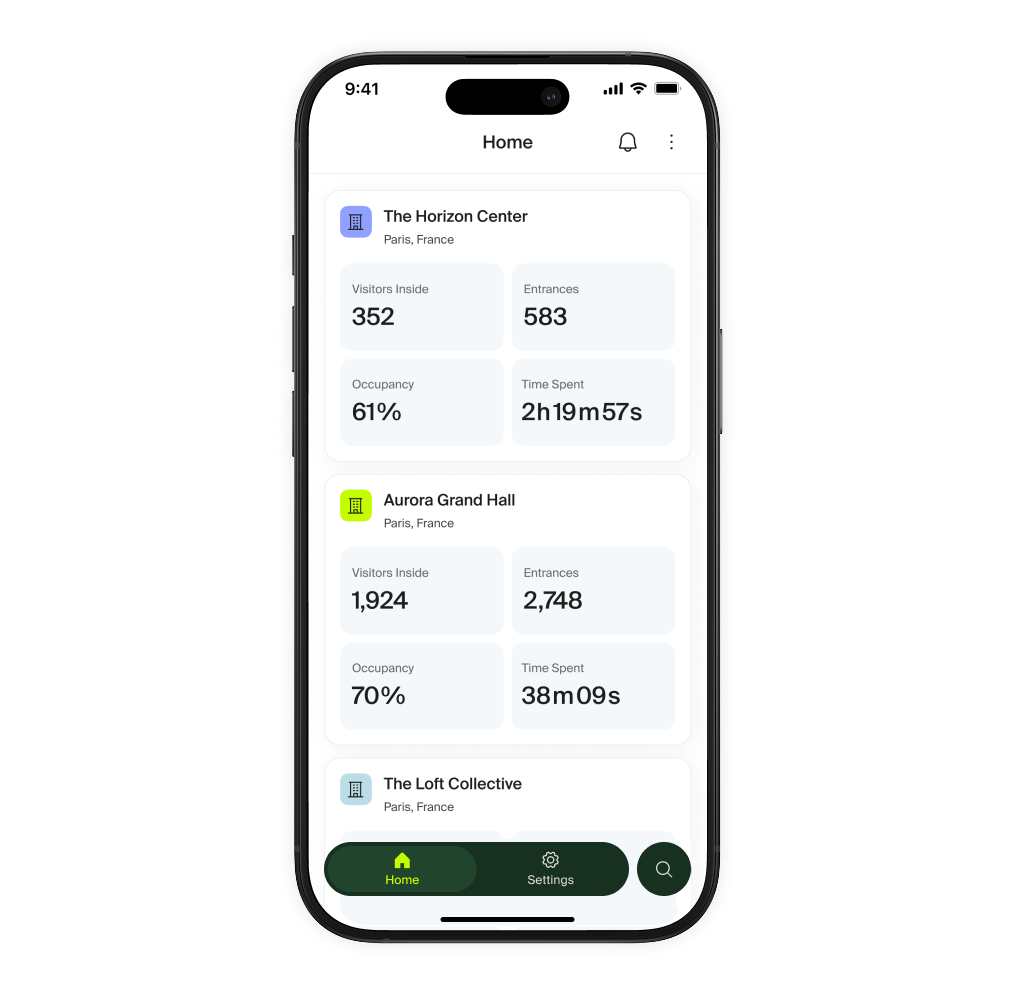
Home Your starting point for the app. From here you can see a list of all of your sites with key metrics updated in real-time. Customize which metrics you see from the ⋮ > Customize menu. Tapping on any site will take you to that site's details. |
|
|
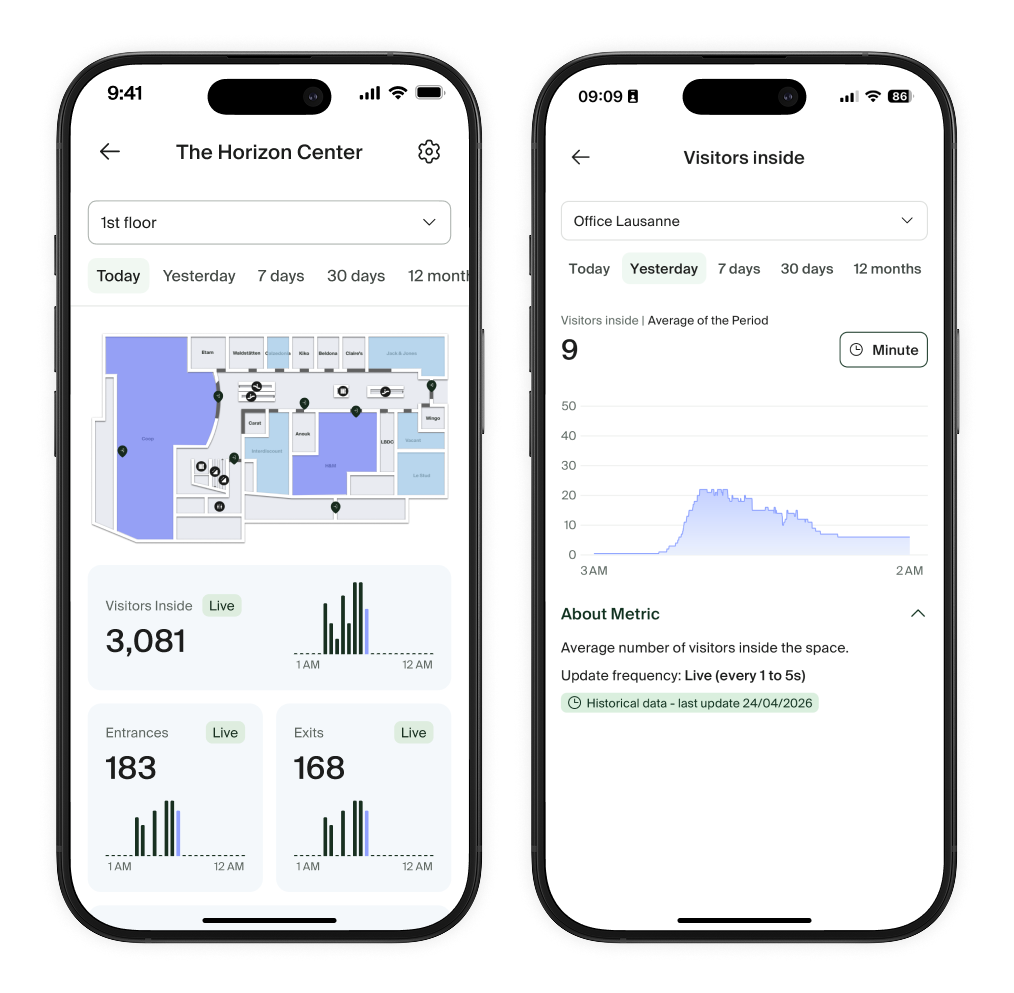
Site & metric detail The site screen gives you a view of all of the metrics available for your site in real time. Use time filters to switch between different time ranges to quickly compare historical data. Tap on any metric to see the chart in more detail. At the bottom of the screen, you'll find an overview of data for sub-zones and passages of the current zone. Tap ⚙️ Settings to access devices linked to the site or adjust inside counts. |
|
|
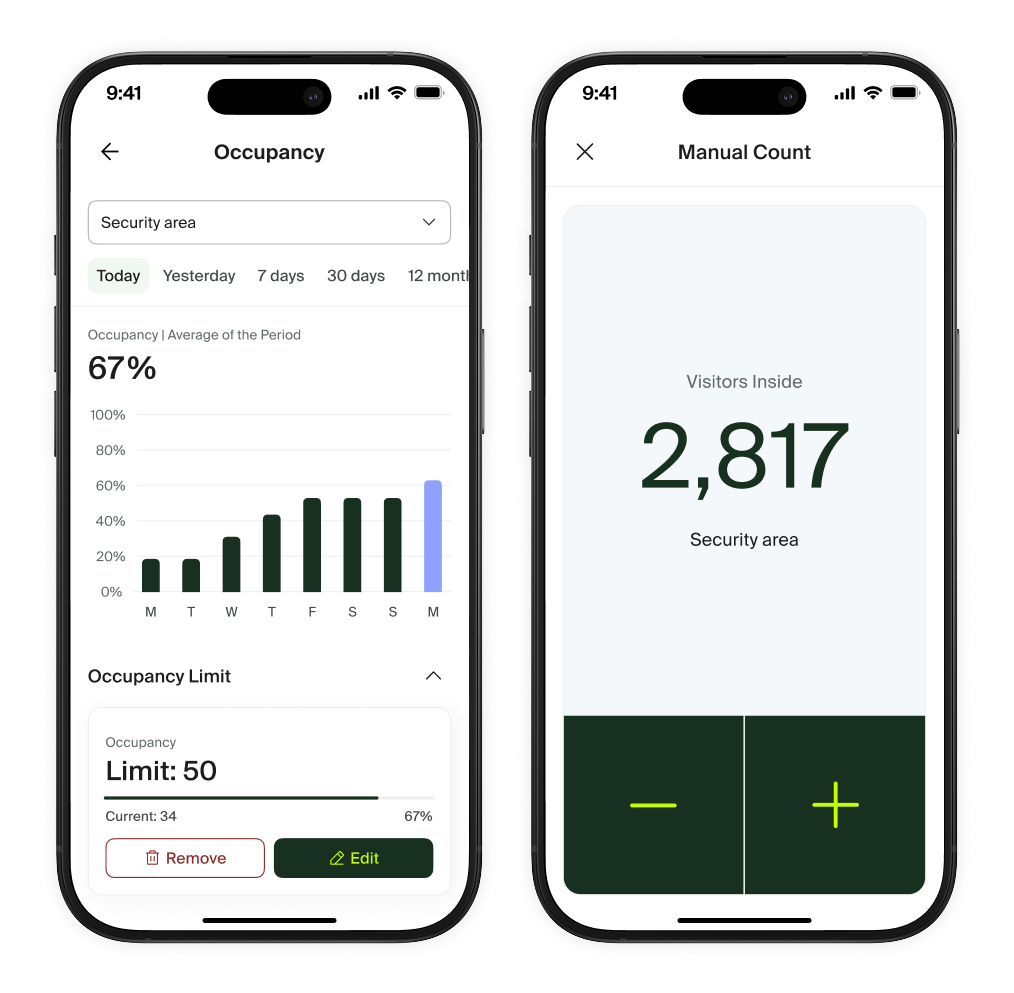
Occupancy management To help you manage the flow of people at events, tap on the Occupancy metric on any site. From there, you can view and set the limit. If the counts drift, you can either edit the currently observed number of people inside the zone or use the manual counter. |
|
|
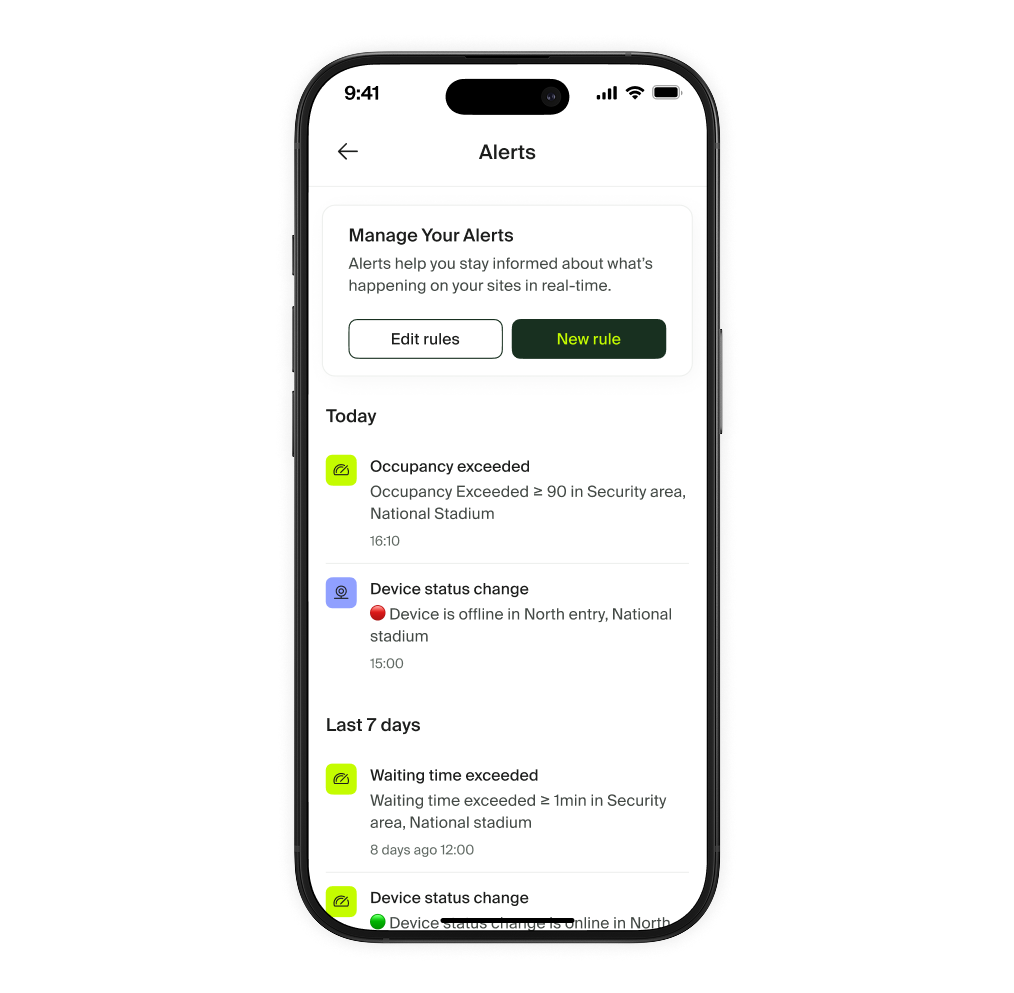
Alerts Access the log of all the notifications from the home screen by tapping the 🔔 Alerts icon. You can also create alerts based on different thresholds or device health conditions to help you react in real time. |
|
|
Device management Do a quick health check of your devices or change their position on the site on the-go. You can access the device list either by tapping ⚙️ Settings icon at the top of each site, or by going to Settings > My devices from the main navigation bar. |
|
|
Smart counting mat setup Use the app to set up your smart counting mat with a simple step-by-step guide. |
|
|
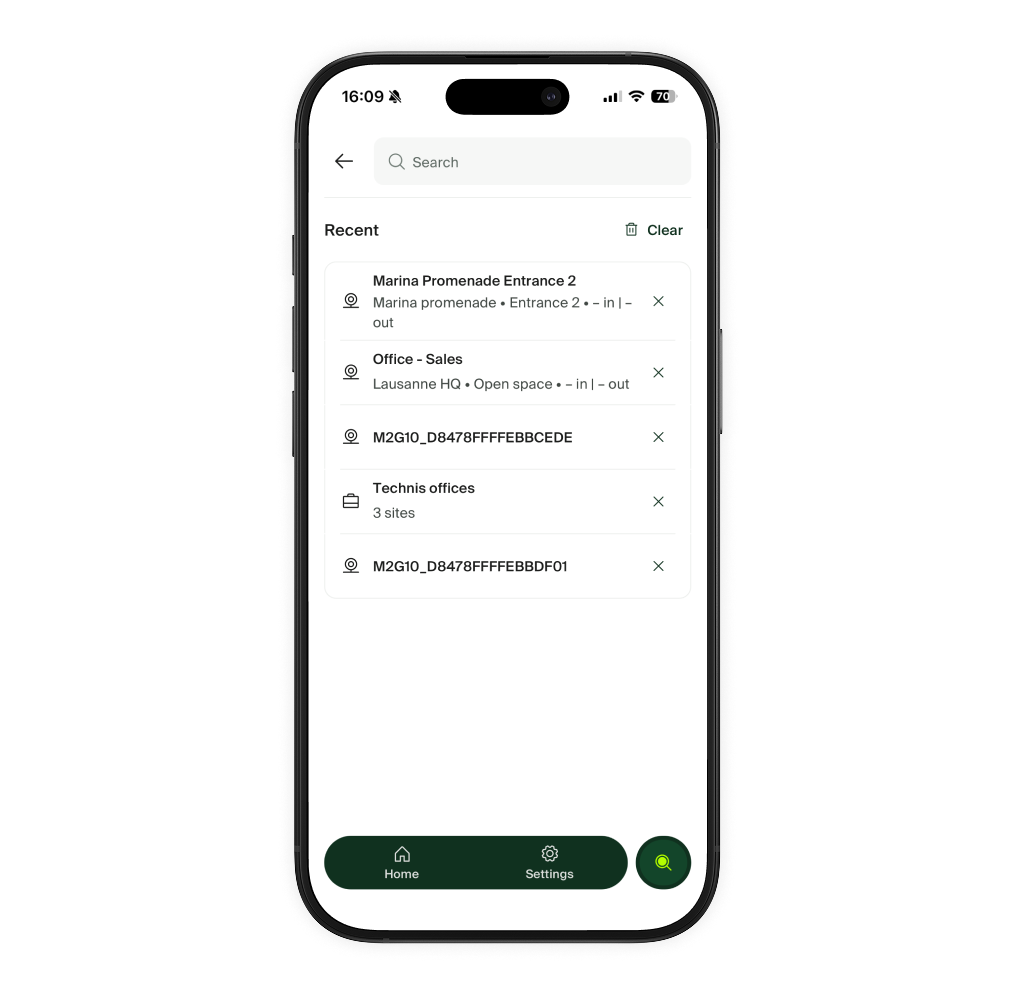
Search With the Search you can quickly jump to any site, zone or modify device configuration. |
|