
Occupancy dashboard allows you to monitor, analyze and manage number of visitors in your in real-time across your sites. By defining safe occupancy limits, you can reduce risks of overcrowding and comply with local safety regulations.
You can use occupancy dashboard for:
-
Safety compliance: Ensure spaces never exceed fire safety or regulatory limits.
-
Event monitoring: Track real-time attendance at exhibitions, conferences, or trade fairs.
-
Alerts: Combine with Alert Rules to receive notifications when occupancy exceeds set limits. Combine with Stop&Go displays to inform your visitors in real-time.
Overview
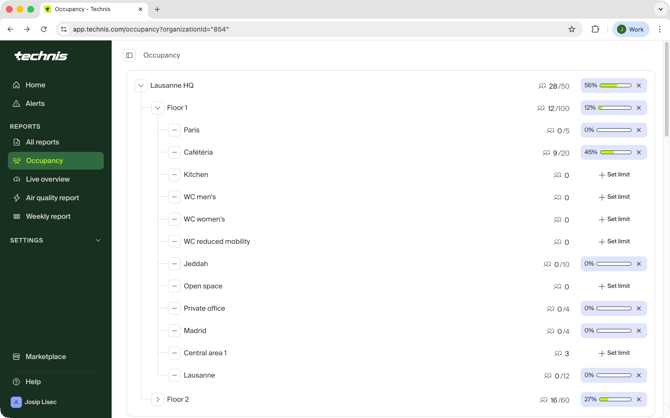
The Occupancy tab lists every zone of all your sites in an easily glanceable format. For each site and zone you can see:
- Current number of visitors inside
- Occupancy limit, if there one defined
- Current occupancy as a percentage
From the list you can also quickly set or remove a limit for any zone.
Occupancy history
| Desktop | Mobile |
 |
 |
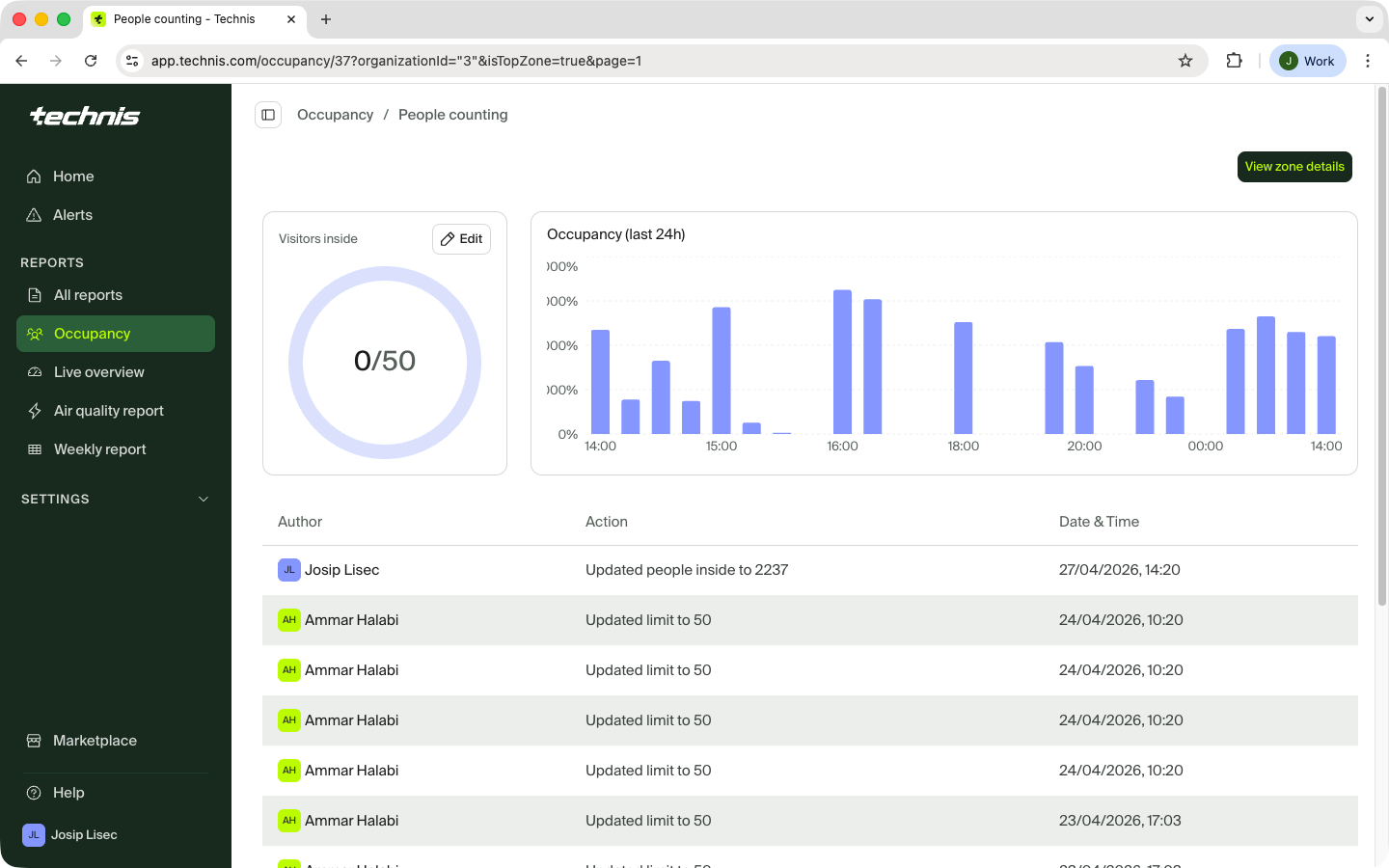
Desktop: Clicking on any zone leads to the occupancy history page where you can consult additional details, such as:
- Set or edit the current limit.
- View current occupancy, or number of visitors inside if no limit is set.
- View audit log of any changes made to the occupancy or overrides of the people inside.
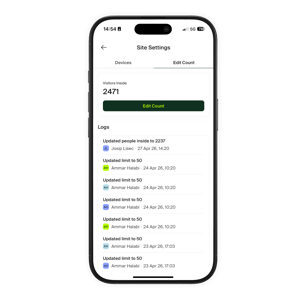
Mobile: From site's screen, tap ⚙️ Site Settings > Edit count.
Overriding inside counts
While Technis guarantees high accuracy counts across your sites and different hardware, there are situation when a device might miscount the number of people.
Miscounts could occur due technological and environmental reasons, for example:
- Counting drift: if 100 people pass through a sensor it might count only 99 of them. Over time, small discrepancies can accumulate and create a drift.
- Missed events: network congestion could cause the device not to send counting data in a timely fashion.
- Configuration: if all possible entrances or exits into the monitored area are not covered by the system.
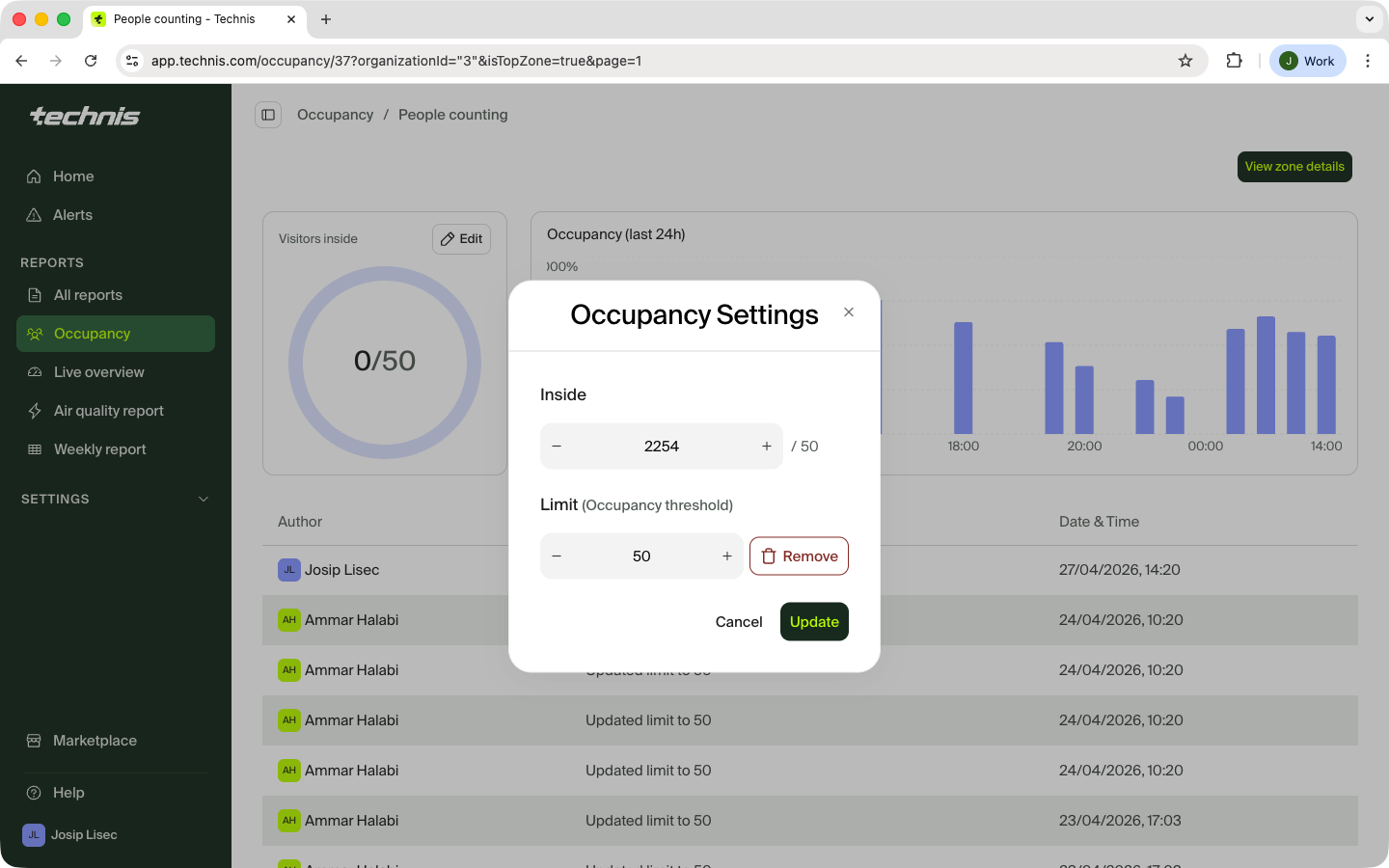
In cases when you notice that automated counts do not match real situation you can override the number of people inside the site from the occupancy history page by clicking the Edit next to Visitors inside section.
How to override inside counts
| Desktop | Mobile |
 |
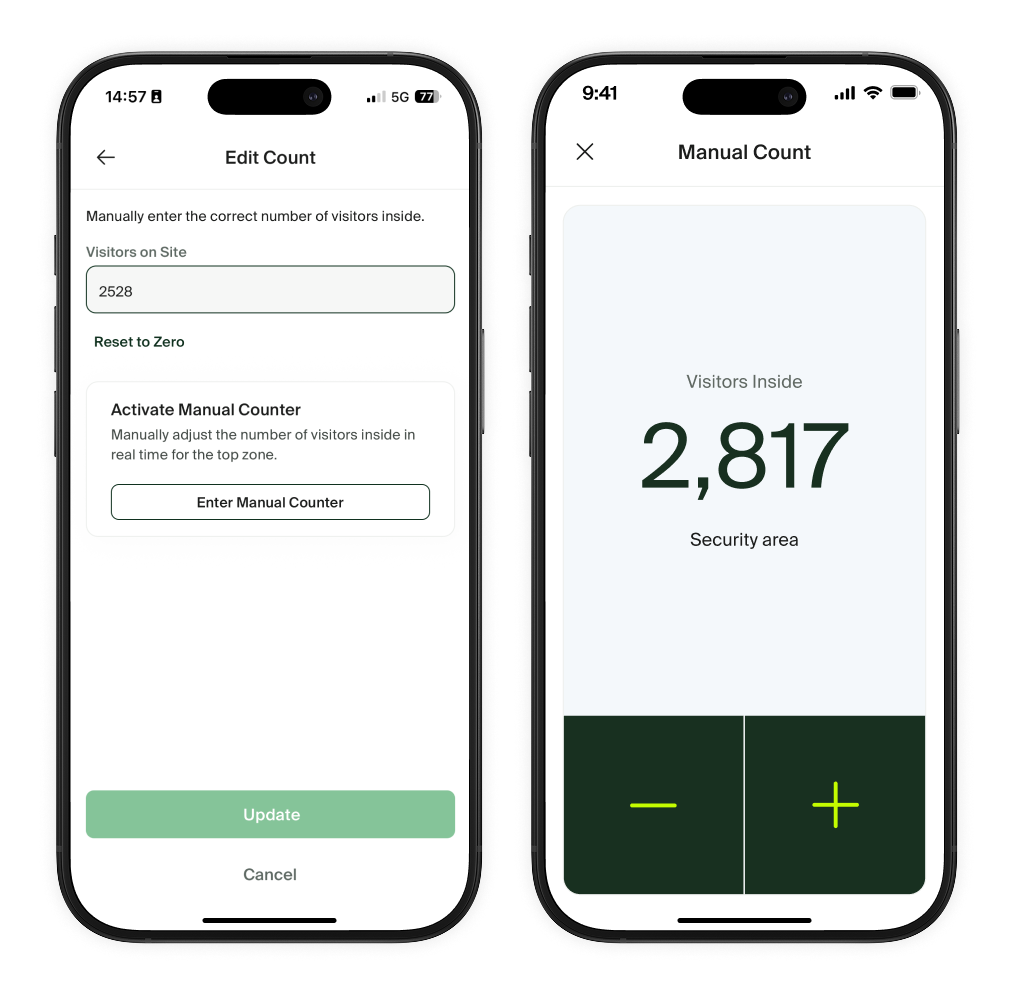 |
Inside counts can be only modified for the top-level zone of your site, and only if there is an entrance defined coming from the outside.
Desktop: Click on Edit button next to the Visitors inside.
Mobile: On the site screen, tap ⚙️ Site settings > Edit count > Edit, or tap on Occupancy metric and scroll to the bottom of the to screen. Manual counter lets you use your phone as a backup in case of a hardware failure.
It may take up to a minute for the edits to be visible different screens across the platform. You may see all values reset to 0 for a brief period of time.